
As an aspiring developer, I use git to manage my personal projects and academic work. Git is a version control system that tracks the changes in a local directory. It has three main parts: The working directory, the staging area, and the repository.
The working directory is the local folder in which you are developing. The staging area consists of the changes added from the working directory, which will be committed to the repository in the next commit. It is a middle ground between the working directory and the git repository.
Basic Commands:
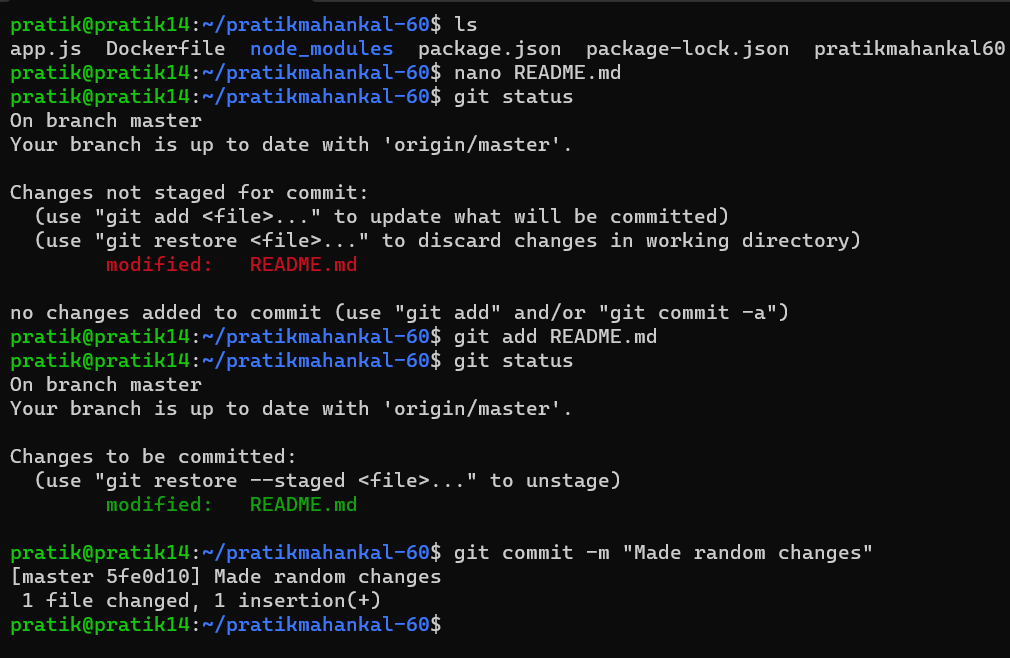
git status
The command git status displays the current state of the working directory and the staging area. It also differentiates between which files are updated and whether they are staged.
git add <filename>
To add the files to the staging area, we use the command git add. Before committing a file to the repository we have to add the file in the staging area. If you want to add all the files at once use the "git add ." command. This will stage all your changed files.
git commit -m "<commit message>"
This command finalizes all the staged changes and commits these changes to the repository. These commits have a commit message for future reference of what this commit does.
git log --oneline
Display all the commits with their commit messages. The git log command gives a huge list of changes while adding the --oneline argument makes it easier to see all the changes done.
Connect to GitHub remote repository using SSH:
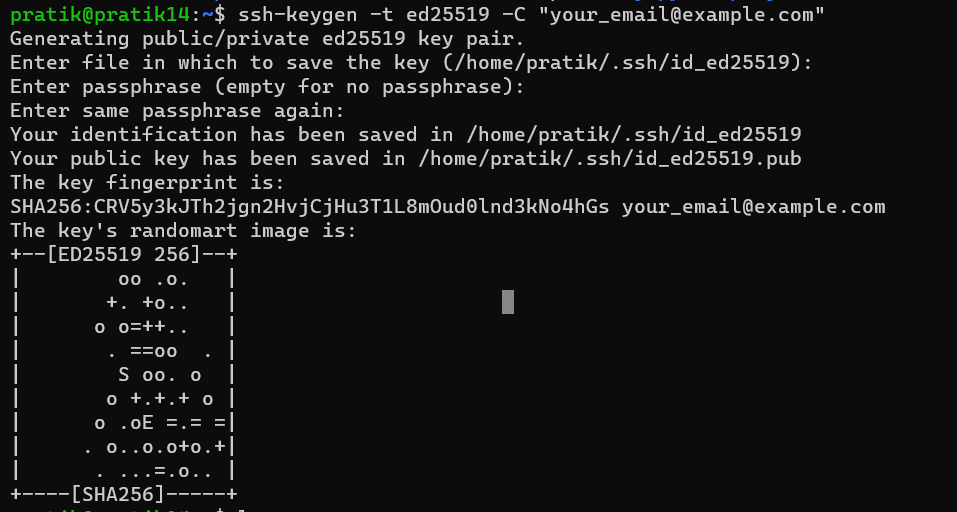
To start we need to first generate an SSH key using this command on Linux:
ssh-keygen -t ed25519 -C "<email-address>"
It uses ED25519 public key signature system for fast verification. It stores the keys in the folder: ~/.ssh.
cat ~/.ssh/id_ed25519.pub
Add the key In the GitHub SSH section. Start the SSH agent on your Linux machine followed by adding the key.
eval "$(ssh-agent -s)"
ssh-add ~/.ssh/id_ed25519

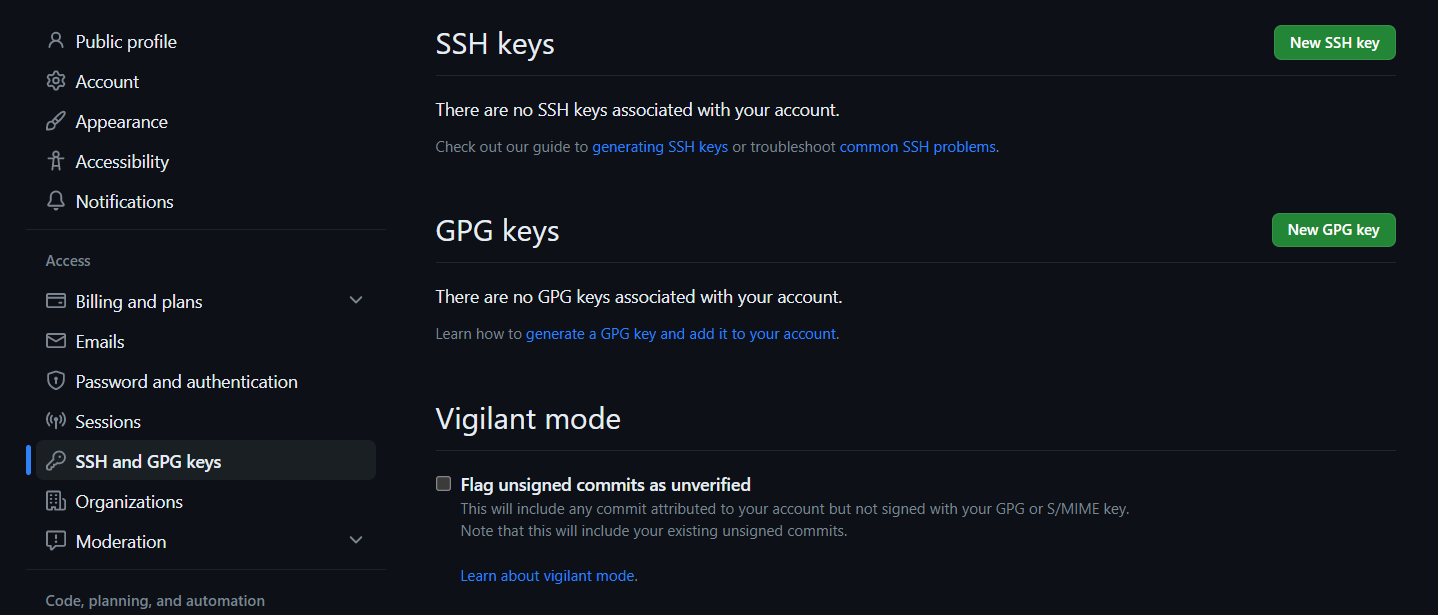
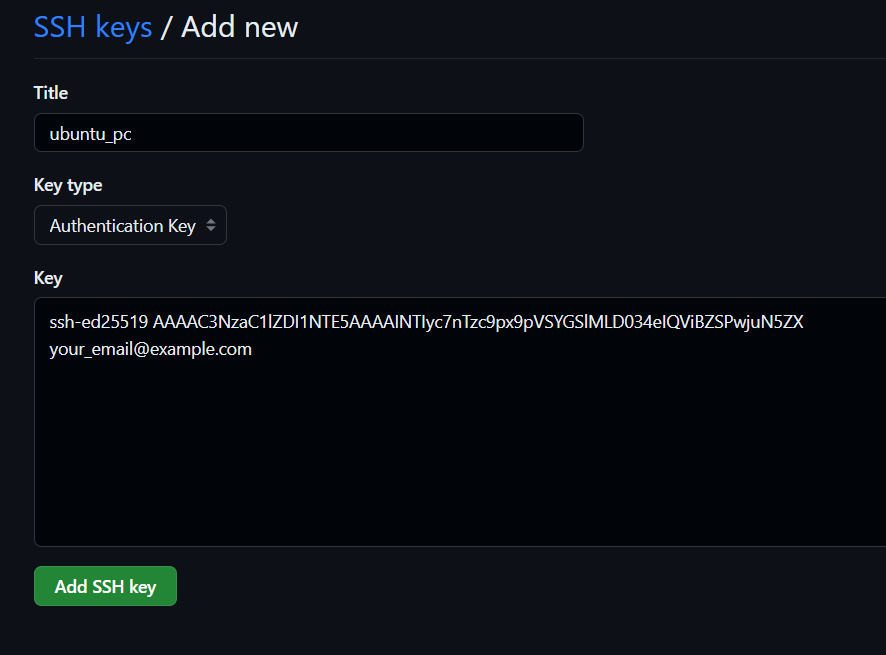
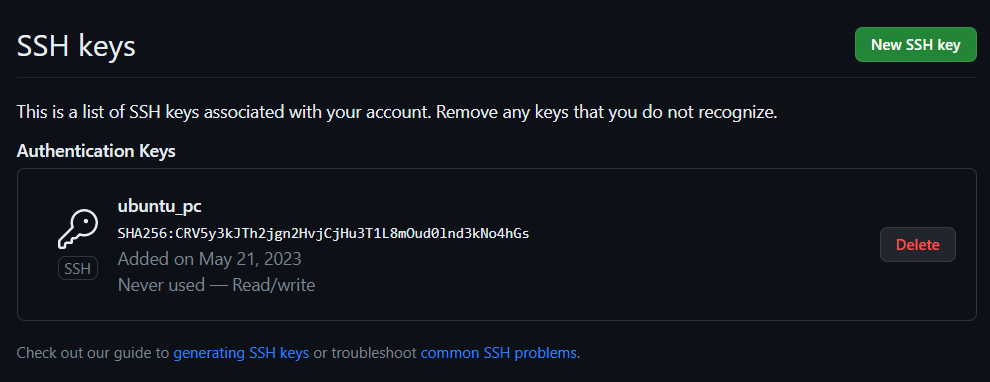
Once we have followed the steps for SSH verification, we can clone repositories, pull our private remote repositories, and also push the new commits.
git remote add <repository-name> <ssh-github-link>
git clone <github-ssh-link>
git push <repository-name>
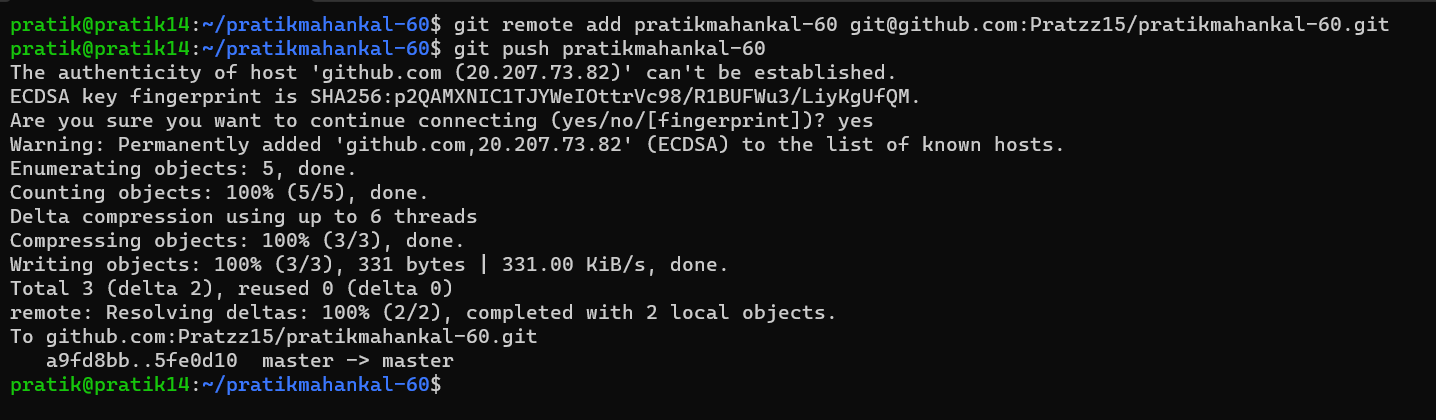

To UNDO your mistakes:
As GIT is a version control system, we can revert to all our previous commits. For this first, we use the git log command to find the log ID of the commit to which we have to revert.
git log --oneline
git revert <log-ID>
git push
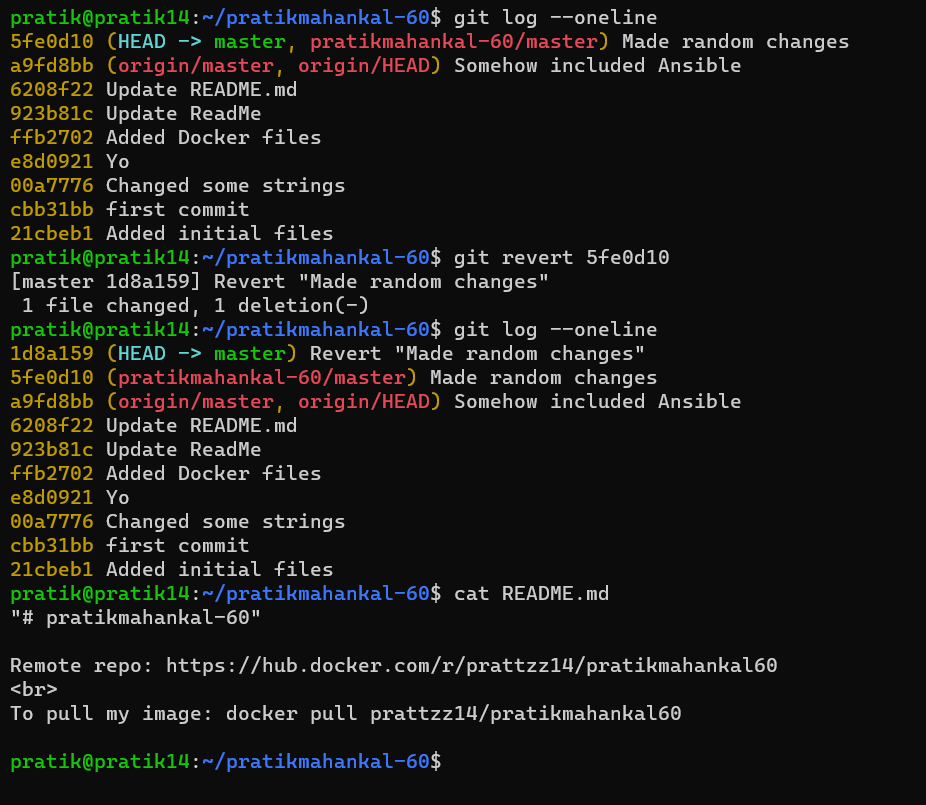
But if the changes are not committed and we just have to remove the changes made and added to the staging area we use the command:
git reset
Git Branches:
When you create a repository, by default you are on the master branch. This master branch can be thought of as the final version of your software which you would push to production. But when you require to make changes to code, directly making changes on the main code is not safe. Your team might also be working on different features simultaneously. For this you branch out from your main code make the required changes test them in your development environment and then merge this branch to the master.
git branch <new-branch-name>
git branch --list
git checkout <branch-name>
This will create a new branch derived from the master branch and the second command lists down all the available branches. The git checkout command is used to change your branch.
git merge <new-branch-name>
After making the required feature to merge the new branch with the master branch. First checkout to the master branch and use the above command.
git branch -d <branch-name>
To delete an existing branch, use the above command.
This tutorial consists of just some commands which I have gone through. But there are many more concepts in git that you might like to explore.

